
Veer Game APK Download
The Veer Game app keeps you logged in and opens the lobby in one tap. Android users install an APK from the official website; iPhone users add the site to the home screen from Safari.
Here’s how to do both safely.
OFFICIAL DOWNLOAD SCREEN
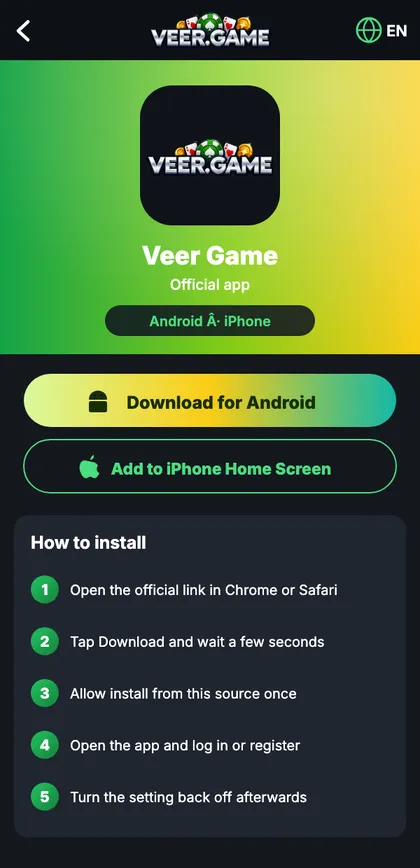
Veer Game app download
Download for Android and Add to iPhone Home Screen buttons, with install steps.
On this page
Veer Game APK download overview
Veer Game isn’t on the Play Store, so Android phones install it from an APK – the standard Android installer file. That’s normal for many apps; it simply means you must download from the official site and nowhere else.
Android installation guide
- Open the official Veer Game site in Chrome.
- Tap Download for Android.
- Confirm the download when Chrome warns about app files.
- Open the file and allow Install unknown apps for Chrome once.
- Tap Install, then Open, and log in.
- Switch Install unknown apps back off.
iPhone & iPad setup
- Open the official site in Safari.
- Tap Share → Add to Home Screen.
- Tap Add and open the icon.
Never install a ‘profile’ or ‘certificate’ to get any app on iPhone.
APK specifications
| Item | Details |
|---|---|
| Platform | Android (APK) · iPhone (web app) |
| Source | Official website only |
| Permissions | Internet, notifications |
| Updates | In-app prompt |
| Price | Free |
App vs browser
| App | Browser | |
|---|---|---|
| Speed | Faster | Depends on browser |
| Stays logged in | Yes | If cookies kept |
| Notifications | Yes | No |
| Best for | Your own phone | Shared devices |
Spotting a fake APK
- Names like ‘Mod’, ‘Pro’, ‘Hack’.
- Asks for SMS, contacts or Accessibility.
- Comes from forwards or video links.
- Asks for payment to ‘activate’.
Install errors and fixes
| Message | Fix |
|---|---|
| App not installed | Another copy exists – uninstall it first |
| Blocked by Play Protect | More details → Install anyway (official file only) |
| Problem parsing the package | Re-download on stable Wi-Fi |
| Install button greyed out | Close chat bubbles or screen filters |
| White screen after opening | Switch network or update |
Permissions the app should ask for
| Permission | Expected? |
|---|---|
| Internet | Yes |
| Notifications | Optional |
| SMS / contacts | Never – cancel |
| Accessibility | Never – cancel |
Updating and uninstalling
Tap the in-app update prompt, or install the latest file from the official site over the old one – your login stays. Uninstalling removes the app but not your account; reinstall any time and log in again.
“Why did Android warn me?”
It warns about every app from outside the Play Store.
“Can I copy the APK to a friend?”
Better that they download it from the official site.
A careful Android install
Priya opens the official site from her bookmark – not the WhatsApp forward a cousin sent. She taps Download for Android; Chrome shows its usual warning and, because she checked the address, she continues. Android asks whether Chrome may install apps; she allows it once. The permissions screen lists only internet and notifications, so she installs, opens and logs in. Then she switches Chrome’s install permission off again and deletes the APK from Downloads.
Older and low-storage phones
Close other apps first, keep at least 1 GB of storage free, and stick to the lightest screens – the WinGo rooms. Graphics-heavy slots and mini games are best opened on Wi-Fi the first time.
Start with Veer Game the safe way
Use the official app or website – one Veer Game account works on every device.
Frequently asked questions
Is Veer Game on the Play Store?
No.
Is the iPhone version safe?
Yes – it’s a Safari web app; no profile needed.
Will uninstalling delete my account?
No.