
Veer Game Login
The Veer Game login uses your registered mobile number (or a bound email) and your password. There’s no SMS code for an ordinary login.
Here’s how to sign in, what to do when it fails, and how to keep your account secure.
OFFICIAL LOGIN SCREEN
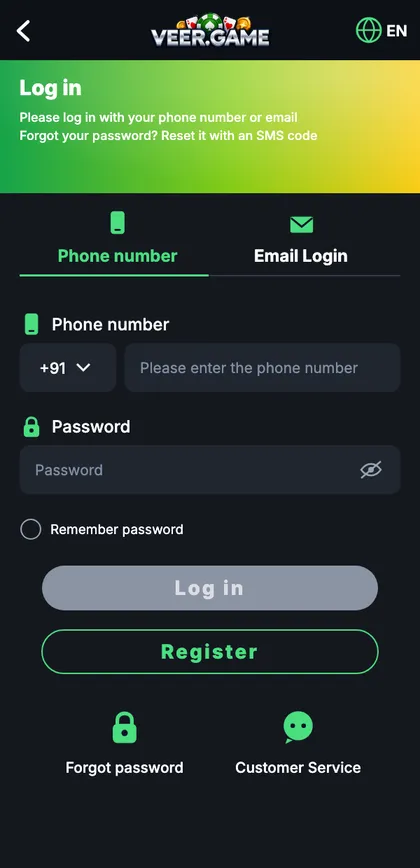
Veer Game login screen
Phone number and Email tabs, password field, Remember password, Forgot password and Customer service.
On this page
Veer Game login overview
One account works everywhere – the Android app, the iPhone web app and any laptop browser. If you can log in on one device, the same number and password work on the others.
Step-by-step: how to log in
- Open the Veer Game app or official site.
- Tap Log in.
- Keep +91 and type your ten digits.
- Type your password – tap the eye icon to check it.
- Tap Log in.
Login specifications
| Item | Details |
|---|---|
| Login ID | Mobile number or bound email |
| OTP needed? | No – only for register and reset |
| Devices | Android, iPhone, browser |
| Sessions | A new login may end an older one |
Error messages
Account does not exist
Number typed with 0 or +91, or registered on another SIM.
Incorrect password
Check capitals; reset after two tries.
Too many attempts
Wait 15–30 minutes.
Network error
Switch Wi-Fi/data, turn off VPN.
Password recovery
Tap Forgot password, enter your number, set a new password and confirm with the SMS code. Full guide: Veer Game forgot password.
Habits that keep your account safe
- Unique password.
- Never share an OTP.
- Official app or bookmark only.
- Log out on shared devices.
- Login alerts on.
Logging in on a laptop
Use Chrome, Edge, Firefox or Safari. On shared or office computers, open a private window, don’t save the password, and log out when you finish.
A careful login, slowly
You open the app and tap Log in; the phone tab is selected and +91 is filled. You type your ten digits and check them. Your keyboard capitalises the first letter of the password, so you tap the eye icon, spot it and fix it. You leave ‘Remember password’ unticked because it’s a shared tablet. The lobby opens with your nickname at the top – and when you’re done, you log out from the Account page.
Logging in after a long break
- Update the app first.
- Try your password once, carefully.
- If it fails, reset it instead of guessing.
- Check your linked number is still yours.
- Look at notifications for any login alerts.
Signs of a fake login page
| Sign | Why it matters |
|---|---|
| You arrived from a forward or ad | Common source of fakes |
| Domain has an extra word or letter | Look-alike site |
| It asks for an OTP to log in | Real login never does |
| Pop-up pushing a bonus | Pressure tactic |
“Can I stay logged in on two phones?”
Yes, but a newer login can end the older session.
“I see someone else’s nickname.”
You logged into a different account – check the number.
Where your login lives
When you log in, the server checks your number and password and gives your device a session token – that’s what keeps you logged in. Clearing app data or browser cookies deletes the token, so you’ll need to log in again, but your account is untouched. Changing your password cancels every token at once, which is the fastest way to remove anyone who shouldn’t be there.
Login checklist
- Official app or bookmark.
- Ten digits, no 0 or +91.
- Password checked with the eye icon.
- Latest app version.
- VPN off, decent signal.
- Reset after two wrong tries.
Start with Veer Game the safe way
Use the official app or website – one Veer Game account works on every device.
Frequently asked questions
Do I need an OTP to log in?
No.
Why was I logged out?
Usually a login on another device or cleared browser data.
Can I log in with email?
Yes, if you bound an email.